JobelHome Alb Apartment

This page contains important information for your stay. Without it, you may not be able to enter the apartment.
Please review the menu items mentioned below before arrival to avoid any issues.

Directions to your Apartment

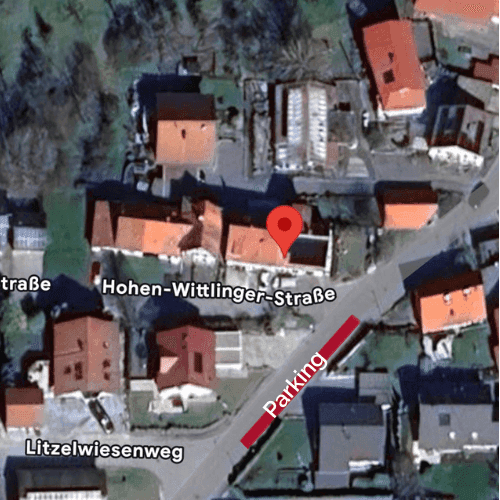
Hohen-Wittlinger-Straße 2,
72574 Bad Urach, Germany

Arriving by Car

We recommend arriving by car, as our apartment is located at the top of a mountain village. Traveling by car offers you the most convenience and flexibility during your stay.

Free parking is available just 50 meters from the apartment, making it easy to unload your luggage and settle in comfortably.
Arriving by Public Transport

If you are traveling without a car, we recommend using the DB Navigator app to plan your journey. From the train station, our village is about 6 km away and you can take a bus connection directly there. Tickets can be purchased easily with cash from the driver.

Please note that using public transport limits your flexibility. Bus connections are less frequent, and the last bus usually departs around 11:00 PM (please check the exact schedule in the DB Navigator app before traveling).

Our village of Wittlingen is small and quiet, with no restaurants and bars. For a wider selection, you’ll find more options in Bad Urach, which is a short ride away.

If you are traveling without a car, we recommend using the DB Navigator app to plan your journey. From the train station, our village is about 6 km away and you can take a bus connection directly there. Tickets can be purchased easily with cash from the driver.


Please note that using public transport limits your flexibility. Bus connections are less frequent, and the last bus usually departs around 11:00 PM (please check the exact schedule in the DB Navigator app before traveling).


Our village of Wittlingen is small and quiet, with only a few restaurants and bars. For a wider selection, you’ll find more options in Bad Urach, which is a short ride away.

Access your apartment

Find your apartment

⚠️ Directions to your apartment ⚠️

The main entrance is located at the back of the house. Simply walk around from the front to the rear, where you will find the door equipped with a convenient pin pad for easy access.

The main entrance is located at the back of the house. Simply walk around from the front to the rear, where you will find the door equipped with a convenient pin pad for easy access.

Enter your apartment

⚠️ Next! unlock your apartment ⚠️
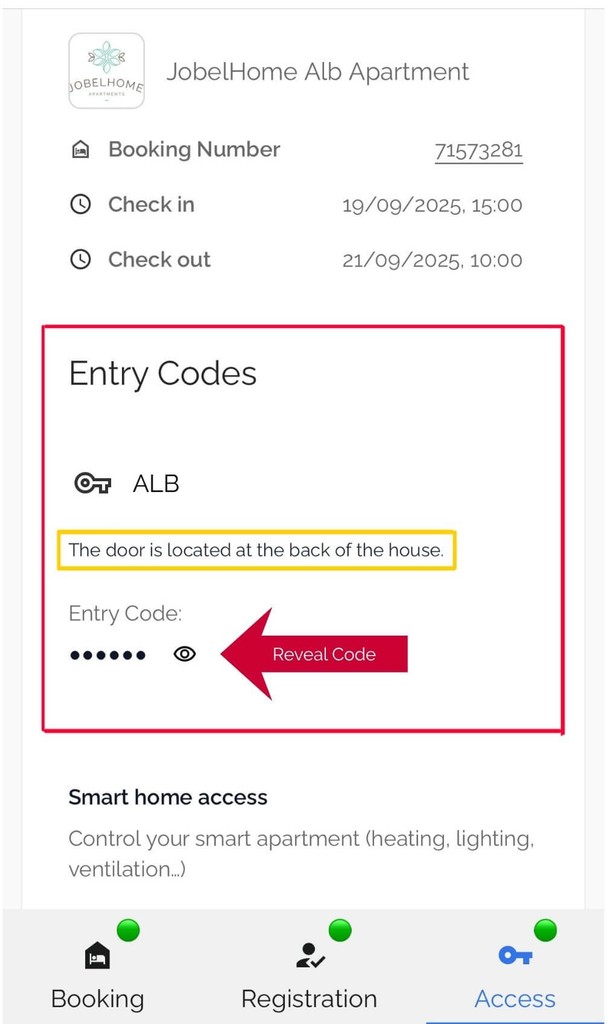
You will find your personal Entry Code in your Dashboard.
At your main door, enter the code on the PIN Pad and don’t forget to press ✔ (the tick button) to confirm.
Your code will be active only from check-in until check-out. You can also view the exact timings on your dashboard.

You will find your personal Entry Code in your Dashboard.
At your main door, enter the code on the PIN Pad and don’t forget to press ✔ (the tick button) to confirm.
Your code will be active only from check-in until check-out. You can also view the exact timings on your dashboard.

You will find your personal Entry Code in your Dashboard.
At your main door, enter the code on the PIN Pad and don’t forget to press ✔ (the tick button) to confirm.
Your code will be active only from check-in until check-out. You can also view the exact timings on your dashboard.

If your children or anyone else are at home, the lights and blinds will stay exactly as they were — nothing changes.

The system only adjusts lights and blinds when you leave using Exit & Arm, which secures the apartment for a longer absence.

The system only adjusts lights and blinds when you leave using Exit & Arm, which secures the apartment for a longer absence.

If your children or anyone else are at home, the lights and blinds will stay exactly as they were — nothing changes.

The system only adjusts lights and blinds when you leave using Exit & Arm, which secures the apartment for a longer absence.

Exit your apartment

⚠️ Lock & arm your apartment in seconds ⚠️

When you are ready to leave you will find a panel located next to your door.

  • Press and hold this panel for 5 seconds.
    If your apartment has the Lighting Panel then simply click it for 5 seconds and if its a Control Panel then click on the "Exit & Arm" button for 5 seconds.

  • This will automatically turn off all lights, close the blinds, and shut down certain electronic devices (such as the cooking plate) for safety.

  • Once activated, the indicator light outside the door will turn red, meaning the apartment is secured and no one can enter.

When you are ready to leave you will find a panel located next to your door.

  • Press and hold this panel for 5 seconds.
    If your apartment has the Lighting Panel then simply click it for 5 seconds and if its a Control Panel then click on the "Exit & Arm" button for 5 seconds.

  • This will automatically turn off all lights, close the blinds, and shut down certain electronic devices (such as the cooking plate) for safety.

  • Once activated, the indicator light outside the door will turn red, meaning the apartment is secured and no one can enter.

When you are ready to leave you will find a panel located next to your door.

  • Press and hold this panel for 5 seconds.
    If your apartment has the Lighting Panel then simply click it for 5 seconds and if its a Control Panel then click on the "Exit & Arm" button for 5 seconds.

  • This will automatically turn off all lights, close the blinds, and shut down certain electronic devices (such as the cooking plate) for safety.

  • Once activated, the indicator light outside the door will turn red, meaning the apartment is secured and no one can enter.

Arming

Arming the apartment


After pressing the panel, you will have 1 minute to leave the apartment. During this time, the apartment is in an arming state. Please make sure to open the door and exit within this period.

  • If you do not leave within 1 minute, a silent alarm will notify support.

  • After the minute passes, the apartment becomes fully armed: all lights and sockets are switched off. The apartment is accessible only if the access code will be entered.


    Canceling the Arming Process


During the arming process, which lasts for one minute, you have the option to cancel at any time. This means that within this one-minute, if you change your mind or realize you need to stay inside, you can interrupt the arming and the system will remain disarmed by pressing the lighting panel / control panel "Arm & Exit" icon for 5 seconds.

Arming the apartment


After pressing the panel, you will have 1 minute to leave the apartment. During this time, the apartment is in an arming state. Please make sure to open the door and exit within this period.

  • If you do not leave within 1 minute, a silent alarm will notify support.

  • After the minute passes, the apartment becomes fully armed: all lights and sockets are switched off. The apartment is accessible only if the access code will be entered.

Canceling the Arming Process


During the arming process, which lasts for one minute, you have the option to cancel at any time. This means that within this one-minute, if you change your mind or realize you need to stay inside, you can interrupt the arming and the system will remain disarmed by pressing the lighting panel / control panel "Arm & Exit" icon for 5 seconds.

Arming the apartment


After pressing the panel, you will have 1 minute to leave the apartment. During this time, the apartment is in an arming state. Please make sure to open the door and exit within this period.

  • If you do not leave within 1 minute, a silent alarm will notify support.

  • After the minute passes, the apartment becomes fully armed: all lights and sockets are switched off. The apartment is accessible only if the access code will be entered.


    Canceling the Arming Process


During the arming process, which lasts for one minute, you have the option to cancel at any time. This means that within this one-minute, if you change your mind or realize you need to stay inside, you can interrupt the arming and the system will remain disarmed by pressing the lighting panel / control panel "Arm & Exit" icon for 5 seconds.

Sleep Mode

⚠️ Prepare for a quiet night ⚠️

What is Sleep Mode?

  1. All moving sensors will be deactivated, so the lights cannot be switch on because of moving in the bed or apartment in the night.

  2. Ventilation will be allowed on a low and silent level only.

  3. All lights in the whole apartment except the orientation lights will be switched off.

With Control Panel

With Lighting Panel

Activation
1× click on the sleep icon


Deactivation
1× click on the sleep icon

Activation
3× quick clicks


Deactivation
3× quick clicks

Activation
3× quick clicks


Deactivation
3× quick clicks

Activation
3× quick clicks


Deactivation
3× quick clicks

The Control Panel

The Lighting Panel

Feedback

Control Panel: LED next to the sleep icon lights up

Sleep Mode: orientation backlight on for 1 minute

Auto Mode: backlight flashes for 1 minute

Control Panel: LED next to the sleep icon lights up

Sleep Mode: orientation backlight on for 1 minute

Auto Mode: backlight flashes for 1 minute

Control Panel: LED next to the sleep icon lights up

Sleep Mode: orientation backlight on for 1 minute

Auto Mode: backlight flashes for 1 minute

Connect to Wifi

Name: JobelHome
Password: DirectBooking10%Discount

Network: JobelHome
Password: DirectBooking10%Discount

Name: JobelHome
Password: DirectBooking10%Discount

Early Check-in & Late Check-Out

For early check-in & late check-out, please contact the support

For early check-in & late check-out, please contact the support

Pet Guidelines

  1. Before Arrival
    Inform us in advance
    Only pets aged 6+ months
    Veterinary passport required


  1. In the Apartment
    No pets on beds
    Do not leave pets alone
    Pet bed & bowls available on request


  1. Outdoors
    Leash required outside


  2. Responsibilities
    You are liable for any damage
    Disturbances may lead to cancellation
    Aggressive pets not allowed

  3. Fee: 15 euros per stay (for direct bookings; OTA prices may vary)


  1. Before Arrival
    Inform us in advance
    Only pets aged 6+ months
    Veterinary passport required


  1. In the Apartment
    No pets on beds
    Do not leave pets alone
    Pet bed & bowls available on request


  1. Outdoors
    Leash required outside


  2. Responsibilities
    You are liable for any damage
    Disturbances may lead to cancellation
    Aggressive pets not allowed

  3. Fee: 15 euros per stay (for direct bookings; OTA prices may vary)


  1. Before Arrival
    Inform us in advance
    Only pets aged 6+ months
    Veterinary passport required


  1. In the Apartment
    No pets on beds
    Do not leave pets alone
    Pet bed & bowls available on request


  1. Outdoors
    Leash required outside


  2. Responsibilities
    You are liable for any damage
    Disturbances may lead to cancellation
    Aggressive pets not allowed

  3. Fee: 15 euros per stay (for direct bookings; OTA prices may vary)


General information

Extra cleaning

Energy Management Automation

General information

Extra cleaning

Energy Management Automation

Turning Lights On and Off

Turn On: A single click switches the lights on. You can also cycle through different lighting modes such as Bright, Max, or Relax with single clicks.

Turn Off: A quick double click will switch the lights off immediately.

Turn On: A single click switches the lights on. You can also cycle through different lighting modes such as Bright, Max, or Relax with single clicks.

Turn Off: A quick double click will switch the lights off immediately.

Turn On: A single click switches the lights on. You can also cycle through different lighting modes such as Bright, Max, or Relax with single clicks.

Turn Off: A quick double click will switch the lights off immediately.

Smart Home Controls

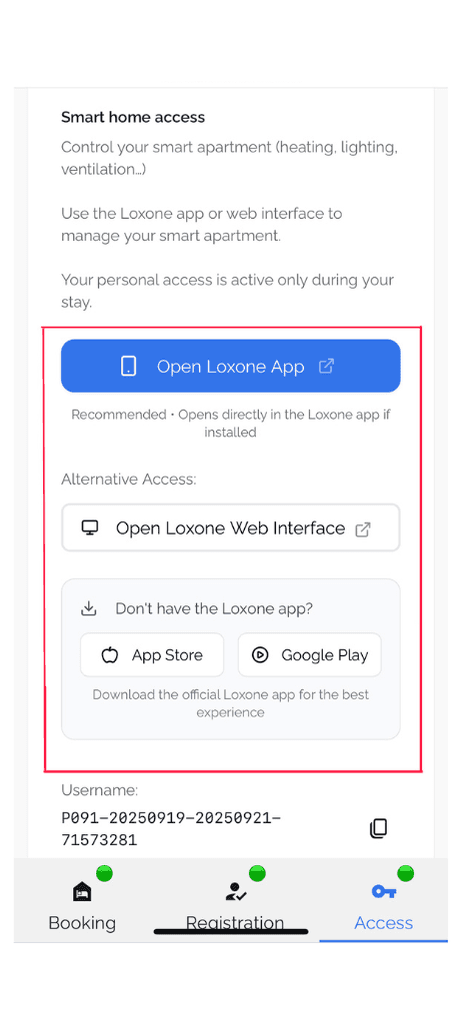
After registering, you’ll receive a dashboard link with all your details: booking info, access codes, and smart home control.

You have two ways to manage your apartment:


  1. Loxone App (recommended): Install the app and log in with the username and password from your dashboard between your stay from check in to check out.

  2. Web Access: Open the dashboard, click “Control Apartment”, and use the provided login details to access the Loxone smart home page.


From here, you can control heating, lighting, ventilation, sleep mode, and more — all directly from your smartphone.

After registering, you’ll receive a dashboard link with all your details: booking info, access codes, and smart home control.

You have two ways to manage your apartment:


  1. Loxone App (recommended): Install the app and log in with the username and password from your dashboard between your stay from check in to check out.

  2. Web Access: Open the dashboard, click “Control Apartment”, and use the provided login details to access the Loxone smart home page.


From here, you can control heating, lighting, ventilation, sleep mode, and more — all directly from your smartphone.

After registering, you’ll receive a dashboard link with all your details: booking info, access codes, and smart home control.

You have two ways to manage your apartment:


  1. Loxone App (recommended): Install the app and log in with the username and password from your dashboard between your stay from check in to check out.

  2. Web Access: Open the dashboard, click “Control Apartment”, and use the provided login details to access the Loxone smart home page.


From here, you can control heating, lighting, ventilation, sleep mode, and more — all directly from your smartphone.

Heating & Cooling Controls

You have 2 options for managing the heating and cooling in your apartment

  1. Central control for the whole home


    Using the plus and minus you can control the temperature from the Loxone app or Loxone Flex control panel in your apartment. The label Temperature will be your room temperature and the label Requested Temperature is the temperature you are trying to set. With this + and - you are controlling the temperature of all rooms in the apartment.

  1. Individual control for each room

    If you prefer more flexibility, you can adjust the heating and cooling separately in each room. This allows you to create different temperature zones—for example, keeping the living room cooler while the bedroom stays warmer.

    You can access it from the rooms section in the heating centre as shown in the video.

    You can also schedule the temperature from a certain date till a certain date.

  1. Individual control for each room

    If you prefer more flexibility, you can adjust the heating and cooling separately in each room. This allows you to create different temperature zones—for example, keeping the living room cooler while the bedroom stays warmer.

    You can access it from the rooms section in the heating centre as shown in the video.

    You can also schedule the temperature from a certain date till a certain date.

  1. Individual control for each room

    If you prefer more flexibility, you can adjust the heating and cooling separately in each room. This allows you to create different temperature zones—for example, keeping the living room cooler while the bedroom stays warmer.

    You can access it from the rooms section in the heating centre as shown in the video.

    You can also schedule the temperature from a certain date till a certain date.

FAQ

How to use the coffee machine?

How to use the coffee machine?

How to use the coffee machine?

Why my heating/cooling doesn't work?

Why my heating/cooling doesn't work?

Why my heating/cooling doesn't work?

How to use the hot plate?

The control of the hotplate are on the right side where you can see the round knobs

In order to use the hot plate press the On/Off button on the left side and press ” + ” or ” — ” on the selected cooking plate to increase or decrease the tempeterature.
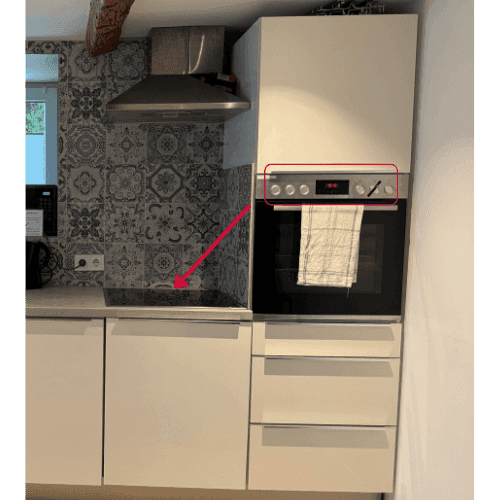
Watch tutorial video


How to use the washing machine & dryer

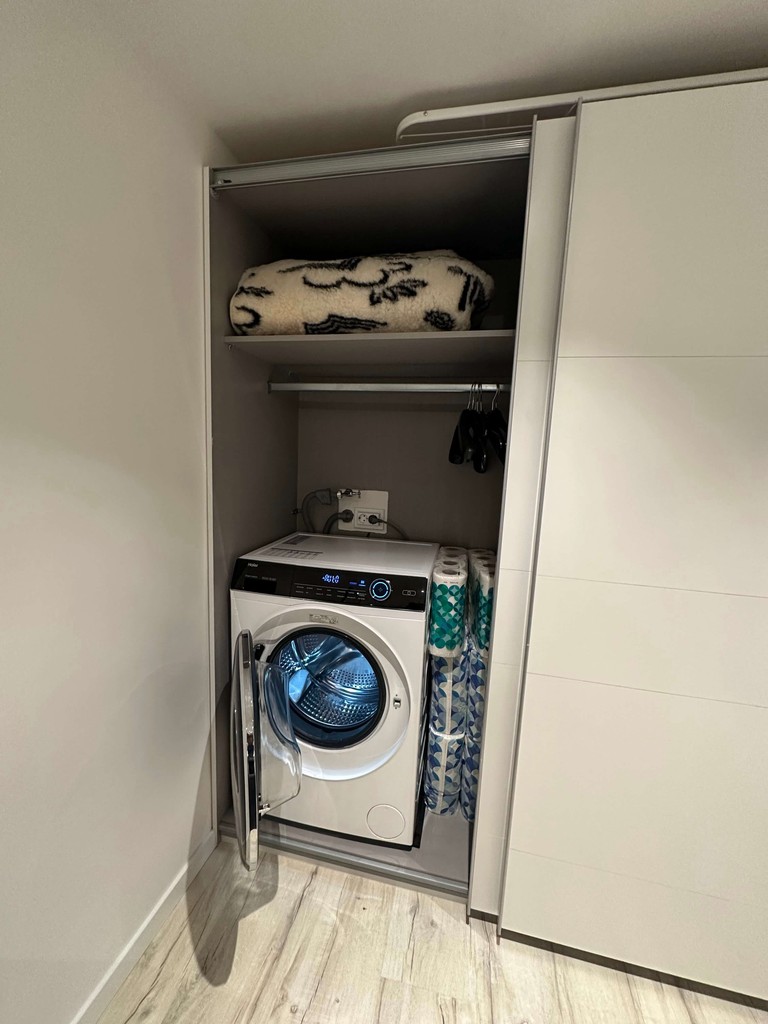
The washing machine/dryer is placed inside the cabinet. It is very simple to use like all washing machine.

It is very silent, hence you can also use it at night so that your clothes are ready by morning.
Is there Amazon Prime or Disney+
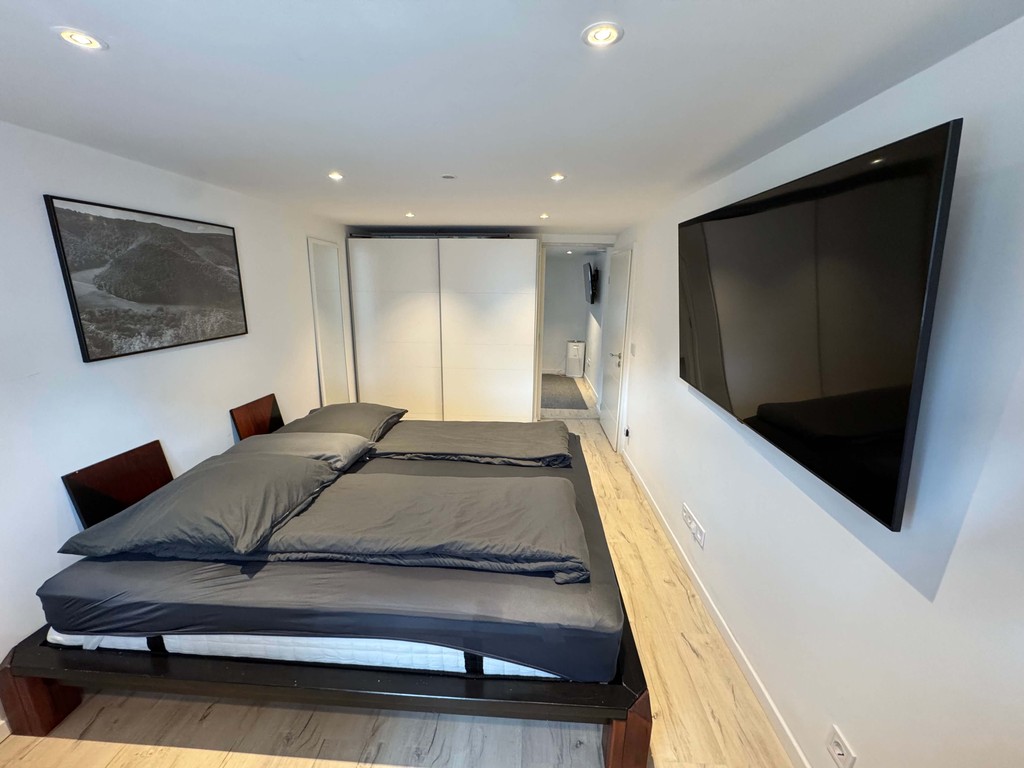
We have Amazon Prime and Disney+ installed on our TV.
To watch Netflix you can sign in with your own account.


We have Amazon Prime and Disney+ installed on our TV.
To watch Netflix you can sign in with your own account.

Is there Amazon Prime or Disney+

We have Amazon Prime and Disney+ installed on our TV.
To watch Netflix you can sign in with your own account.

Responsible Owner

Endicon GmbH

Postal address: Hohen-Wittlinger-Straße 2, 72574 Bad Urach, Germany

Telephone: +49 7125 9376542 / +36 20 2419634 (WhatsApp included)

Commercial Register: HRB 787854 (Stuttgart)

D-U-N-S Number: 34-118-9838

Tax Number: 124/125/51433

VAT ID No.: DE815006571

Endicon GmbH is a limited liability company under German law with its head office in Hohen-Wittlinger-Straße 2, 72574 Bad Urach, Germany.

Managing director and founder: Balázs Endrédi

Platform of the EU Commission for online dispute resolution: www.ec.europa.eu/consumers/odr

Have Questions?

Contact our customer service team!

Telephone: +49 7125 9376542 / +36 20 2419634
Email : alb.booking@jobelhome.com

Linkedin
Linkedin
instagram
instagram
instagram
instagram